
We should try this for Health App Dashboards (Redesigning Withings App)
I am redesigning this for educational purpose. I saw Withings’ announcement in CES 2023, their products look so polished that I started checking their website and found the app. I was so inspired that I want to learn how they design. That’s how I got to this fun exercise.
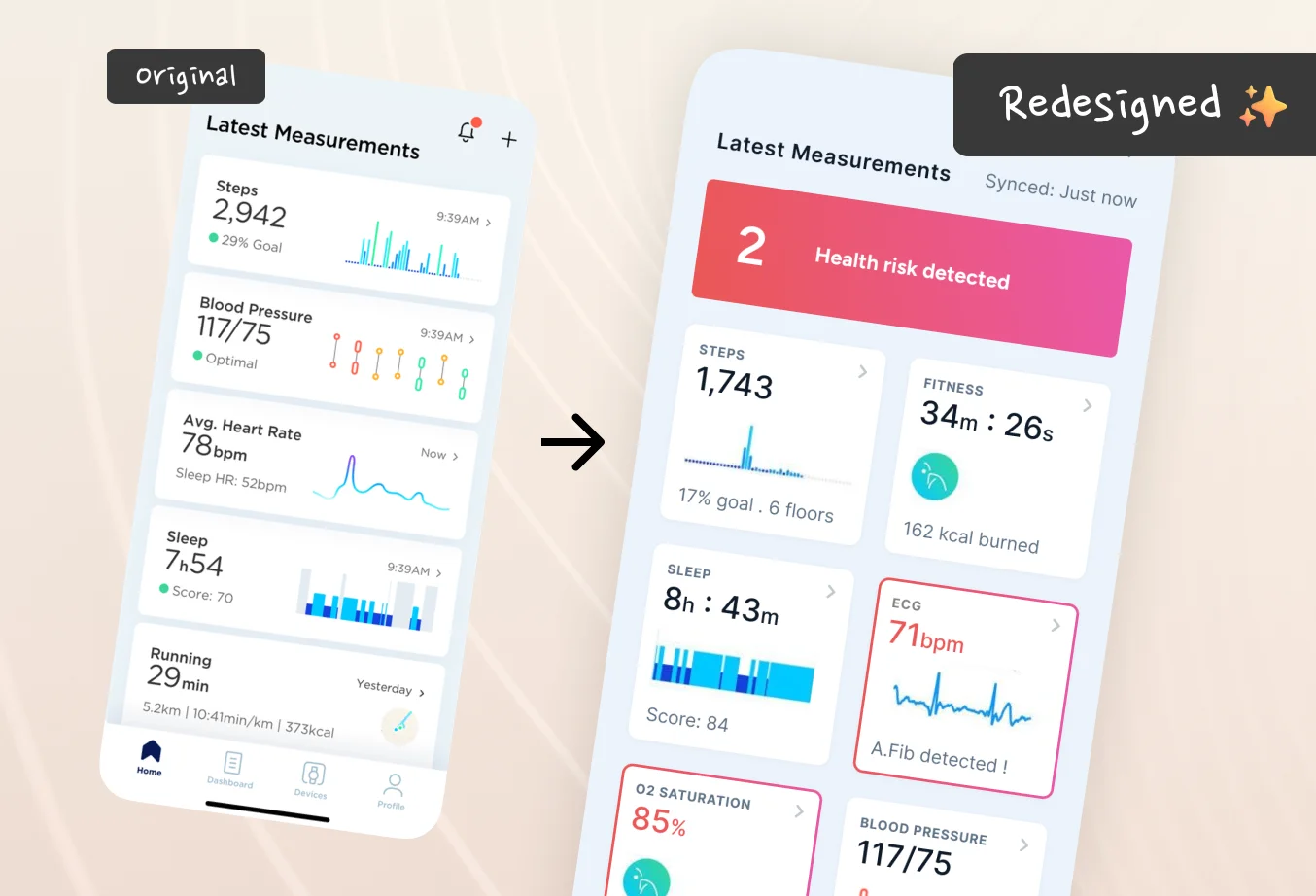
Exploring glanceable layout and actionable insights for health apps.
1. Evaluation
I used to judge an app screen by just how it looks. Then I might tap here and there randomly. But this really lacks strategy and direction for a good redesign. Slowly, I have built an approach that is suited for my style. I check:
- What the contents of this screen is implying
- How the app is telling you to do your tasks. I call this ‘Getting the objective’ for lack of a better word.
- How does the app make you feel or what’s the identity the app assuming
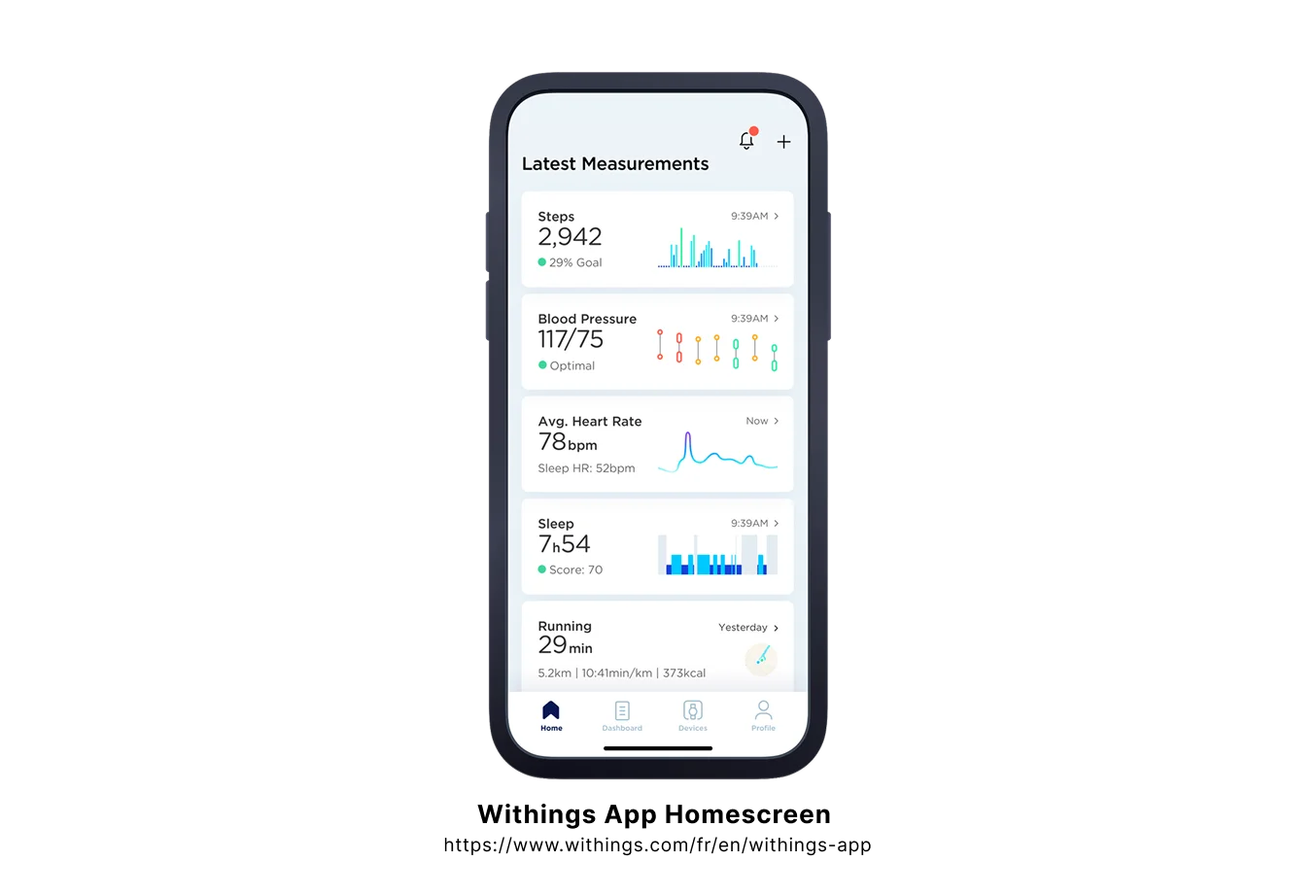
Note: I made this redesign in May. Withings has already updated their UI.
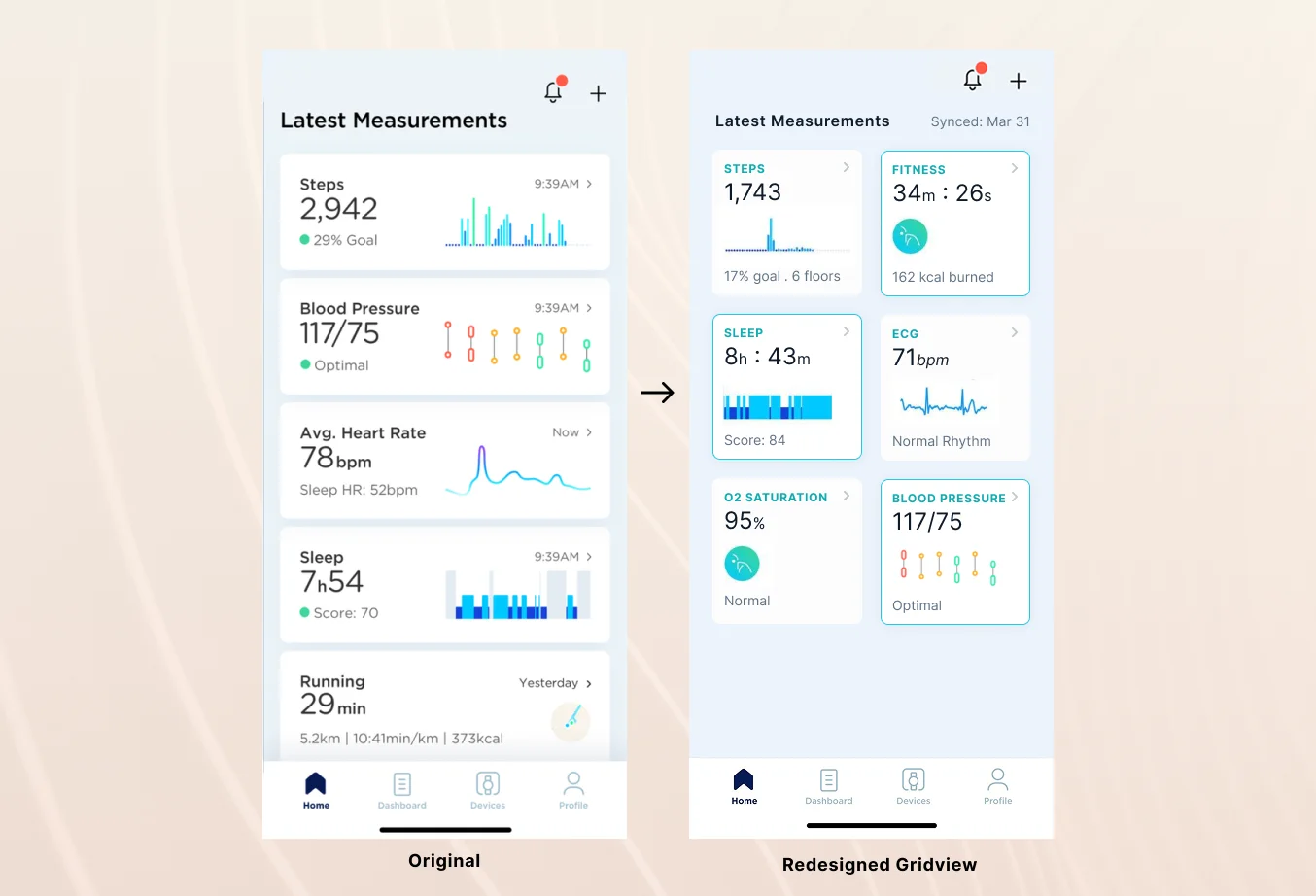
This UI is already good, but I am going to look through my personal preference lens:
- Where to focus: There is a lot happening. It would take quite an effort to read each card.
- Comparing unconsciously: This might be my pet peeves. When I see a list view like this, I was subconsciously comparing with the above card and below cards.
- What to do: The screen is telling us that this is an overview of my data. But it is not helping me pinpoint on what I should do next.
- Do I really need the graphs: I also felt the small graphs are not very descriptive and not very helpful to me. I want to try to replace them with simpler ones.
2. Grid View
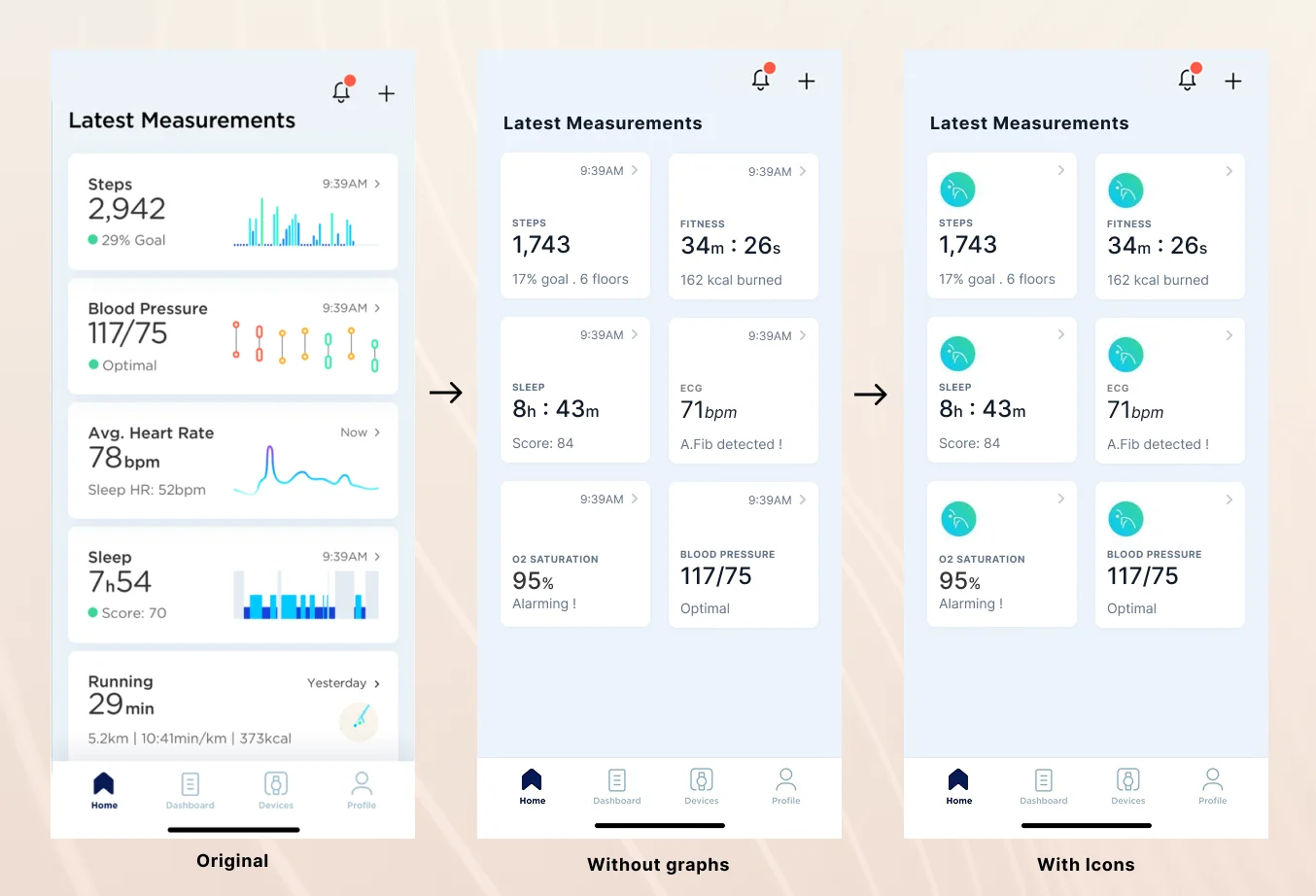
The most important part of this redesign is to bring all the important numbers to the front page without having to scroll. I have decided to go with a grid view.
So the user can get their summary at a glance. But that comes with a big challenge — cramming a lot of data in half-size boxes.
To pull that off, I made a few compromises:
- Group items into pairs — heart rate + blood pressure, etc.
- Emphasize the readings more than labels. Labels are muted down.
- Decrease emphasis on units (mmHg, bpm, etc.) as most users already know this once they get used to it.
- Replace graphs with simple icons. (I regretted this, and you will see later.)
- Remove time indicators (e.g. 2h ago) and replace with simple dot indicators if you have not checked yet — similar to messenger apps.
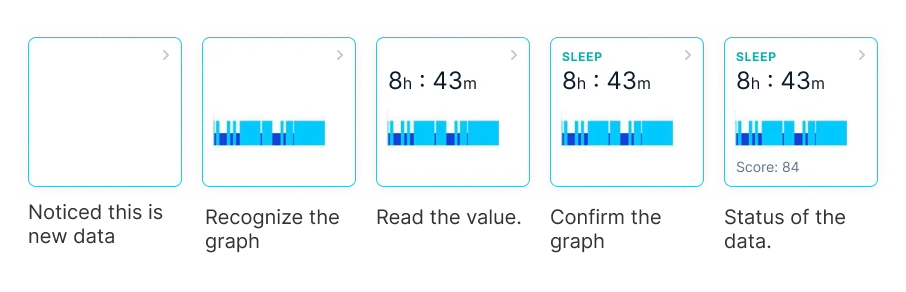
Removing graphs was a bad move. Because:
- It removes the personality of the app. Withings looks like Withings because of those signature mini graphs.
- Graphs are quick to read than numbers once you get used to it.
- Icons do not give any meaning to health data. Graphs can show trends.
So I brought the graphs back!
3. The Gym Trainer Rule
Even with the new grid view, the screen is still just an overview.
Imagine you have a personal trainer at the gym. If he just repeats your numbers back to you: “Your weight is 70kg, your body fat is 20%” — that is not very helpful.
A good trainer tells you: “You lost 1kg this week! Keep up the good work on cardio, but let’s improve your sleep.”
That gave me the idea to add an actionable summary at the top of the dashboard.
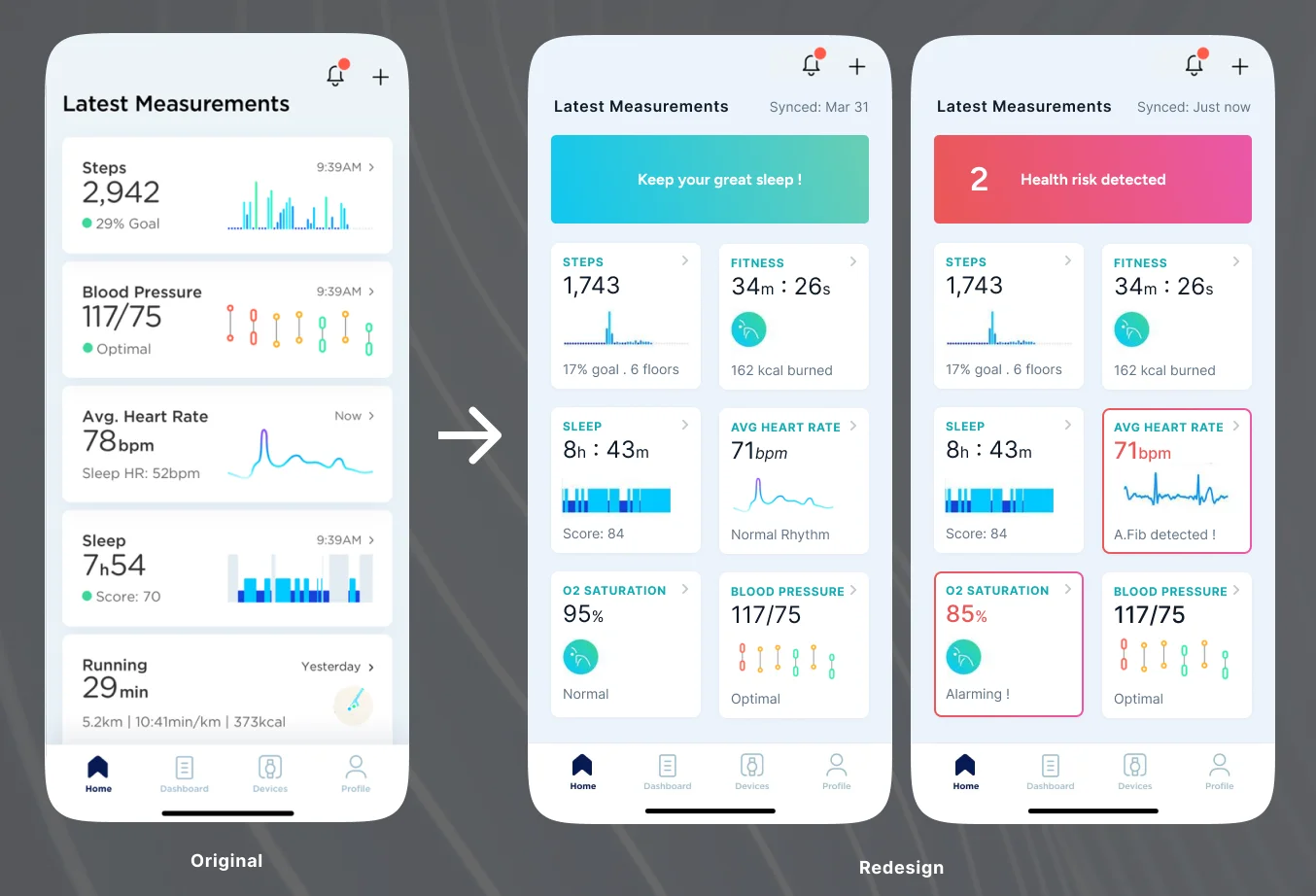
The top card highlights:
- Good trends and positive achievements to celebrate
- Areas that need attention or have been dropping
- Clear, actionable tips for what to do next
Originally published on Medium.
Related Stories
 Sep 15, 2026
Why Custom Apps Cost More Than People Expect
Understanding the real costs behind building software: team salaries, the challenge of building alone, and why an app is an ongoing commitment.
 Sep 15, 2026
Mobile App vs. Web App: What Founders Need to Know
Understanding the real differences between an app you download from the store and an app that runs in your browser.
 Aug 15, 2025